Exporting Files
Creating video files
Once you are happy with your video preview, the next step is to export it. This will convert your OpenShot project into a single video file, which will work on most media players (such as VLC, Windows Media Player, etc.) or websites (such as YouTube, Vimeo, etc…).
Click on the Export Video icon  on the Toolbar at the top of the screen,
or click File→Export Video from the main menu.
on the Toolbar at the top of the screen,
or click File→Export Video from the main menu.

Give your exported file a name, and set its folder path.
You will usually export using your project profile – this is preselected for you in the Video Profile box. You can choose between High, Medium or Low quality – the higher the quality, the larger the size of the file generated.
There are many other settings [to do: add an appendix], but generally you can just leave them. Click the Export Video button to start the conversion.
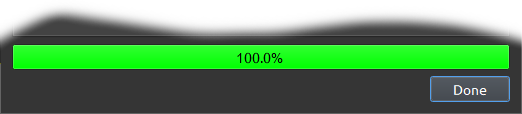
During conversion you will see a blue progress bar, which will reach 100%, and (after a short delay) will turn green and display a “Done” button.